Build a Vision-Language App in Python: Ask Questions About Images
Build a local Python image-question app with Flask and Ollama, send images to a vision-language model, and test OCR answers against a sample label.
You have a photograph of a product label and want to know the price printed on it. A text-only model can't inspect that photograph just because you mention a filename in a prompt. A vision-language model accepts images as well as text, so you can send the picture itself and ask a question about what is visible. The interesting part is checking the answer against the pixels, especially when a model confidently fills in a detail the photograph doesn't show.
We'll build a small local browser app where you upload a PNG or JPEG, type a question, and read the model's reply. The example uses Flask for the form and qwen3-vl:2b through Ollama for image understanding. Download the starter, or open vision_app.py, for the complete application. We'll test with an original fictional shop label whose price and stock count we already know.
What a vision-language model receives
A vision-language model represents image content as input alongside language. The details differ across architectures, so don't assume every model reads an image the same way or handles the same tasks. For our application, the API contract is enough: a user message contains text plus an images array. Ollama's vision documentation specifies base64-encoded image bytes for the REST API. The encoding transports the image; it isn't a text description of it.
Supplying pixels and supplying a path are different things. The Python app opens the uploaded file and sends its encoded contents to the model server. Writing “look at label.png” in the prompt wouldn't do that. The default in our helper is 127.0.0.1:11434, the machine running the Python process. If you point OLLAMA_URL somewhere else, that server receives the uploaded image and question.
Choose a model that supports images
A model can answer text questions without supporting visual input, so check the model listing rather than assuming any installed chat model will work. We're using Qwen3-VL's two-billion-parameter tag, a roughly 1.9 GB download. Its runtime memory use can exceed the download size, especially with larger contexts or images. If you haven't installed Ollama yet, the guide to running LLMs locally covers setup on a Mac or Linux.
ollama pull qwen3-vl:2b
ollama list
unzip ai-blog-starters.zip
cd ai-blog-starters
python3 -m venv .venv
source .venv/bin/activate
python -m pip install -r requirements.txt
python vision_app.py
Open http://127.0.0.1:5001 in a browser on the same machine as the script. The sample binds to localhost and runs without Flask's debugger; it isn't set up as a public upload service. Deployment can come later, once you've decided how uploads, permissions, and waiting users should be handled. This walkthrough was tested in October 2026 with qwen3-vl:2b on CPU, Flask 3.1.3, and Pillow 12.3.0.
Start with an image you can verify
The sample label below says “DESK MONITOR,” “Price: EUR 199,” and “Stock: 7.” Ask for the price and stock count, then compare the response with the image yourself. The artwork is an original fictional example included in the download, so no live product details can go stale. A clear label is the easy first check. It says nothing about blurred receipts, tiny handwriting, or dense charts.
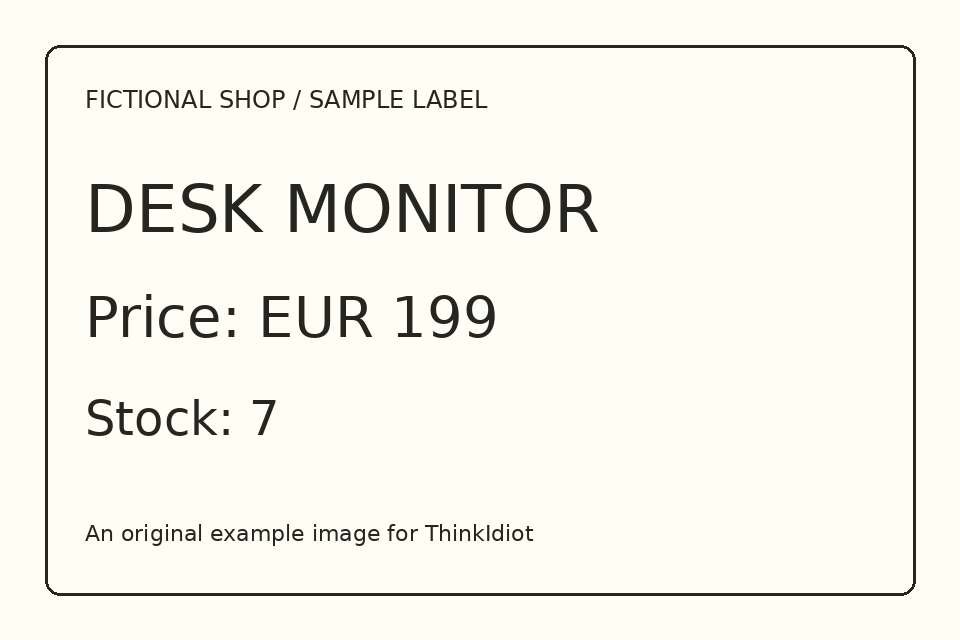
Try a question the label can't answer, such as when the item was manufactured. A useful response says the image doesn't show that rather than inventing a date. You can also ask what currency is printed, or which word identifies the product. Keep the expected answer for each question beside the image. That's a far better test than asking for a broad description and accepting whatever sounds plausible.
Before we look at the code, here is the whole path one upload takes through the app, with the real numbers for this label.
What actually reaches the vision model?
Follow one label from upload to answer. Press Play, or step through the five stages of the sample app.
Choose an image you can check.
The sample label is an original fictional image. We already know it says EUR 199 and stock 7, so we can judge the answer against the pixels instead of trusting how confident it sounds.
Sizes and the base64 prefix were measured with the starter’s own image_payload function. The answer row summarises the recorded run in VALIDATION.md; your wording will differ.
Read and prepare the uploaded file
The form sends the upload to Flask, and Pillow checks that it can open a PNG or JPEG. The sample caps the request size at five megabytes and rejects images above twenty megapixels, with a readable error message for each instead of a server error page. It applies EXIF orientation, converts to RGB, and resizes to fit inside 1,280 by 1,280 pixels before saving a JPEG in memory. Resizing can lose fine print, so if small text matters, compare the original and resized images before blaming the model.
with Image.open(file) as image:
    image = ImageOps.exif_transpose(image).convert("RGB")
    image.thumbnail((1280, 1280))
    buffer = BytesIO()
    image.save(buffer, format="JPEG", quality=90)
encoded = base64.b64encode(buffer.getvalue()).decode("ascii")
This excerpt shows the conversion; the downloadable image_payload function also includes the format and dimension checks. The upload never touches the disk, and the app doesn't accept a server-side filename from the user. For documents with small text, a crop of the relevant area can preserve more detail than a whole-page thumbnail, although a crop may remove context needed to interpret a number.
Put the image and question in the same message
After preparation, send the base64 string in the user message's images list. The question stays in content, with a short instruction to use visible information and say when something can't be determined. We use non-streaming output so the first version displays one complete answer. The context and generation limits bound the example's work. They don't make the answer correct.
result = request_json("chat", {
    "model": "qwen3-vl:2b",
    "stream": False,
    "think": False,
    "messages": [{
        "role": "user",
        "content": question + " Use only visible information; say when you cannot tell.",
        "images": [encoded],
    }],
    "options": {"temperature": 0, "num_ctx": 4096, "num_predict": 300},
})
answer = result["message"]["content"]
Don't put the base64 data in the text prompt, and don't add a data:image/...;base64, prefix to the REST payload. The API expects encoded image bytes in the dedicated field. Also, don't send a local filesystem path and assume the server can open it: it may be running elsewhere, and the REST interface doesn't use that path as visual input. The official vision API examples are a useful reference if you switch to an SDK.
Display the answer as text
The Flask route passes the returned answer into a template, which displays it as text rather than trusting it as HTML. Model output is still generated content, even when it describes an image you supplied. The form also reports errors such as an unreadable upload, an oversized file, or a missing question. A larger interface would show that a request is running and handle timeouts, but a synchronous form keeps the data flow easy to follow.
return render_template_string(
    HTML,
    answer=answer,
    error=error,
    question=question,
)
A successful HTTP response doesn't mean the model saw the image correctly. Check that the answer matches a visible detail and that the page shows the current request's result. If a response is empty, inspect the raw reply and the generation limit. If it names details absent from the image, record that as a failure. For reading labels, invented detail is exactly what your tests should catch.
Test the image handling separately from the model
The app's upload and template behaviour can be tested without a real vision model by replacing the HTTP helper with a controlled response. Those tests check valid and invalid images, the size limits, the question field, and whether generated markup is escaped rather than executed. They can't measure OCR quality. A separate live run sent the sample label through the real local qwen3-vl:2b model on CPU and received EUR 199 and stock seven, matching the printed values. The validation notes keep that run apart from the mocked tests.
For a useful evaluation set, include several layouts, resolutions, languages, and cases where the requested answer isn't visible. Keep source images and expected answers together, and count failures by task type: reading a printed amount, counting objects, and interpreting a graph aren't the same task. The RAG evaluation guide shows the same habit of fixed questions and expected answers applied to document search. If an answer affects a real decision, keep a person checking the extracted information.
Know when OCR is a better fit
If your task is only to transcribe text from clear scans, compare this approach with a dedicated OCR tool before assuming a conversational model is necessary. OCR is a more direct starting point for text extraction, while a vision-language model helps when the question needs visual context. For scanned PDFs, the RAG tutorial explains where OCR fits before document indexing and why extraction errors can survive into otherwise valid citations.
Once the simple form works, choose the next feature from an actual failure: a higher-resolution crop, a checked structured field, or a follow-up question about the same image. Each addition changes what you store or send. The goal is a repeatable path from the uploaded image to an answer you can compare with visible evidence, and enough information to tell where a bad result came from.