Build a RAG Chatbot in Python with PDF Citations
Build a local PDF RAG chatbot with Python and Ollama. Learn retrieval, embeddings, page citations, and quote validation with runnable code and tests.
“How much can I spend on a hotel?” should be an easy question if the answer is in your employee handbook. A chatbot, though, hasn't read that handbook just because the file is on your laptop. You need a way to find the right passage and put it in front of the model. That's what we'll build here: a RAG chatbot in Python that searches a PDF, answers your question, and shows the page and sentence behind its answer.
We'll run the models locally with Ollama and use a short sample handbook, so you can check every answer yourself. Along the way, we'll look at a mistake that's easy to miss: a chatbot can quote the correct sentence and still give you the wrong answer. The code catches some citation errors, but it doesn't catch that one. If you'd like to see the idea before getting into Python, try the hotel question below.
What we're building: a PDF RAG chatbot
The project runs in your terminal and has four commands, listed below. You'll first use index to prepare the PDFs, then search to see which passages match a question. Once that looks right, ask adds an answer from the language model. The chat command lets you keep asking questions without restarting the script, although each question is independent. Ask “What is the hotel limit?” in full; this version won't remember what you meant by “What about hotels?”
| Command | What it does |
|---|---|
index | Reads a folder of PDFs and saves searchable passages and their embeddings. |
search | Shows the passages retrieved for a question without asking the language model. |
ask | Answers one question and prints checked source references. |
chat | Repeats that process until you type /quit. |
Our sample is a fictional four-page handbook covering leave, travel, equipment, and security. Using a document this small makes it easier to spot mistakes: the hotel limit is on page 2, the equipment allowance is on page 3, and there's no company revenue figure anywhere. Download the project for the Python files, pinned dependencies, sample PDF, and tests. You can also open the handbook or read rag.py before downloading anything.
How RAG answers a question
RAG stands for retrieval-augmented generation. The name describes two jobs: find useful text, then use it to write an answer. Think of an open-book exam. Finding the relevant page gets you part of the way there, but you still have to read it properly. The original RAG paper combines retrieval with language generation; we'll use that basic idea in a much smaller program, where you can see the passages being passed to the model.
Adding a PDF doesn't change the model's weights or train it on your document. Instead, we prepare a searchable index and use it whenever a question comes in. The search returns passages, and those passages go into the model's prompt alongside the question. There are therefore two bits of work: preparing the documents when they change, and looking up evidence for each new question. The demo follows a hotel question through that second part.
Let’s ask the PDF a question.
One question, four steps. Follow the highlighted sentence.
Start with a question.
Leave. Travel. Equipment. Security.
First, we need to find the hotel policy.We want to know the hotel limit, but the model hasn’t seen the handbook yet. First we need to find the policy.
This example uses the sample handbook. Its four short passages all fit in the prompt.
Because the index is saved, each new question only needs one fresh embedding before the search. The saved index is also the first place to look when debugging: you can inspect what was stored before blaming the generated answer.
The tools we'll use
There are two models in this project, and they have different jobs. nomic-embed-text turns text into numbers we can compare during search. qwen3:4b reads the returned passages and writes an answer. Ollama runs both, while pypdf reads the PDF and NumPy handles the similarity calculation. The table below shows where each tool fits. Keeping those jobs separate also lets you change the chat model later without rewriting the PDF reader or the search code.
| Tool | Job | Why it is here |
|---|---|---|
| Python 3.12 | Runs the application | A familiar environment for a small, inspectable program. |
pypdf | Extracts text from PDF pages | Lets us preserve the page each passage came from. |
nomic-embed-text | Turns passages and questions into vectors | Provides the representation used by the search step. |
| NumPy | Computes similarity and ranks passages | Enough for a small teaching index without a separate database service. |
qwen3:4b | Writes the answer | Runs locally through Ollama and is separate from the embedding model. |
| Ollama | Serves both models | Gives us local HTTP endpoints for embeddings and chat. |
For storage, we'll use a JSON file rather than a database. That's enough for a small folder of text-based PDFs, and you can open the index and read it. Loading every vector for every question won't scale to a large collection. Use documents you trust for this version; handling arbitrary uploads would need more work than the PDF reader and prompt in this tutorial provide.
Get Ollama and Python ready
Install Ollama and leave it running (our guide to running LLMs locally with Ollama covers setup in more detail). On a Mac, open the Ollama app. On Linux, use the installed service or run ollama serve if there isn't already a server running. Then unzip the project and open a terminal in its folder. The commands below create a Python environment, install the dependencies, and download both models. Run ollama list at the end to check that the embedding model and chat model are available before moving on.
unzip pdf-rag-starter.zip
cd pdf-rag-starter

python3 -m venv .venv
source .venv/bin/activate
python -m pip install -r requirements.txt

ollama pull nomic-embed-text
ollama pull qwen3:4b
ollama list
The model downloads are about 274 MB for nomic-embed-text and 2.5 GB for qwen3:4b; the embedding model page and Qwen3 page list the tags. Allow extra memory to run them, since download size doesn't include the memory used for processing a request. The Python packages are pinned, but model tags can change. Save the output of ollama --version and ollama list if you want to compare your results with another run later.
The folder should look like this. rag.py contains the application, evaluate.py runs questions against the real models, and tests/test_rag.py checks the Python logic without Ollama. Requests go to http://127.0.0.1:11434 by default, so the questions and extracted PDF text stay on the machine running the script and Ollama. If you change OLLAMA_URL to another server, that server will receive them. The docs folder is where you'll put PDFs when you try your own documents.
pdf-rag-starter/
  rag.py
  evaluate.py
  requirements.txt
  README.md
  docs/
    sample-handbook.pdf
  tests/
    test_rag.py
Step 1: Read the PDF and keep the page numbers
A PDF can look tidy on screen while storing its text in an awkward order. Columns, tables, and repeated headers can all make extraction messy, so it's worth reading the extracted text before blaming the model for a strange answer. We'll start with pypdf, read one page at a time, and collapse repeated whitespace. The snippet below prints the beginning of each page, which gives you a quick way to check that the reader is finding the text you expect.
import re
from pypdf import PdfReader

def normalize(text):
    return re.sub(r"\s+", " ", text).strip()

reader = PdfReader("docs/sample-handbook.pdf")

for page_number, page in enumerate(reader.pages, start=1):
    text = normalize(page.extract_text() or "")
    print(page_number, text[:200])
Notice that we attach the page number while reading the file. Later, the program can use that saved number instead of asking the model to supply one. We count from the first physical page in the PDF: page 1 means the first page in the file. That may differ from the labels printed in a book, especially if it begins with a cover, an introduction, or pages numbered with Roman numerals. Keep that distinction in mind when checking a citation.
If your PDF is a scan, this step may return nothing. pypdf doesn't perform OCR, so a page that's just an image needs another tool to turn it into text first. The project warns when a page has no readable text and stops if it finds no passages at all. For scanned documents, add OCR before indexing and check the extracted words, particularly numbers and tables. A wrong number at this stage can become a perfectly quoted wrong answer later.
Step 2: Split long pages into passages
Sending a whole document with every question wastes space on text the model doesn't need. We'll split each page into smaller passages, or “chunks,” of up to 180 words, keeping 36 words of overlap between neighbours. Those are starting settings for this example. The overlap helps when a cut would otherwise separate an amount from its subject, or a rule from the sentence explaining its exception. Try the example below to see what happens when part of a sentence loses its context.
What happens when a chunk cuts off mid-sentence?
Read chunk B on its own. Can you tell what the amount is for?
The hotel reimbursement limit is EUR 160 per night.
...The hotel reimbursement limit is
EUR 160 per night. ...
The amount is there, but we’ve lost its subject.Chunk B contains an amount but doesn’t say whether it’s for a hotel, meals, or something else. Add overlap to bring back the missing words.
This example is shortened to show the cut. The code uses 180 words per chunk with 36 repeated words. Each sample page is short enough to fit in one chunk.
Here's the loop from extract_chunks. Each new window starts 144 words after the previous one, because 180 minus 36 is 144. Alongside the text, we save the relative file path and PDF page number so we can trace a passage back to its source. This is only the chunking part of the function; pdf, folder, and page_number are set in the surrounding PDF-reading code in rag.py. The loop stops once a window reaches the end of the page.
words = text.split()

for start in range(0, len(words), size - overlap):
    chunks.append({
        "source": pdf.relative_to(folder).as_posix(),
        "page": page_number,
        "text": " ".join(words[start:start + size]),
    })
    if start + size >= len(words):
        break
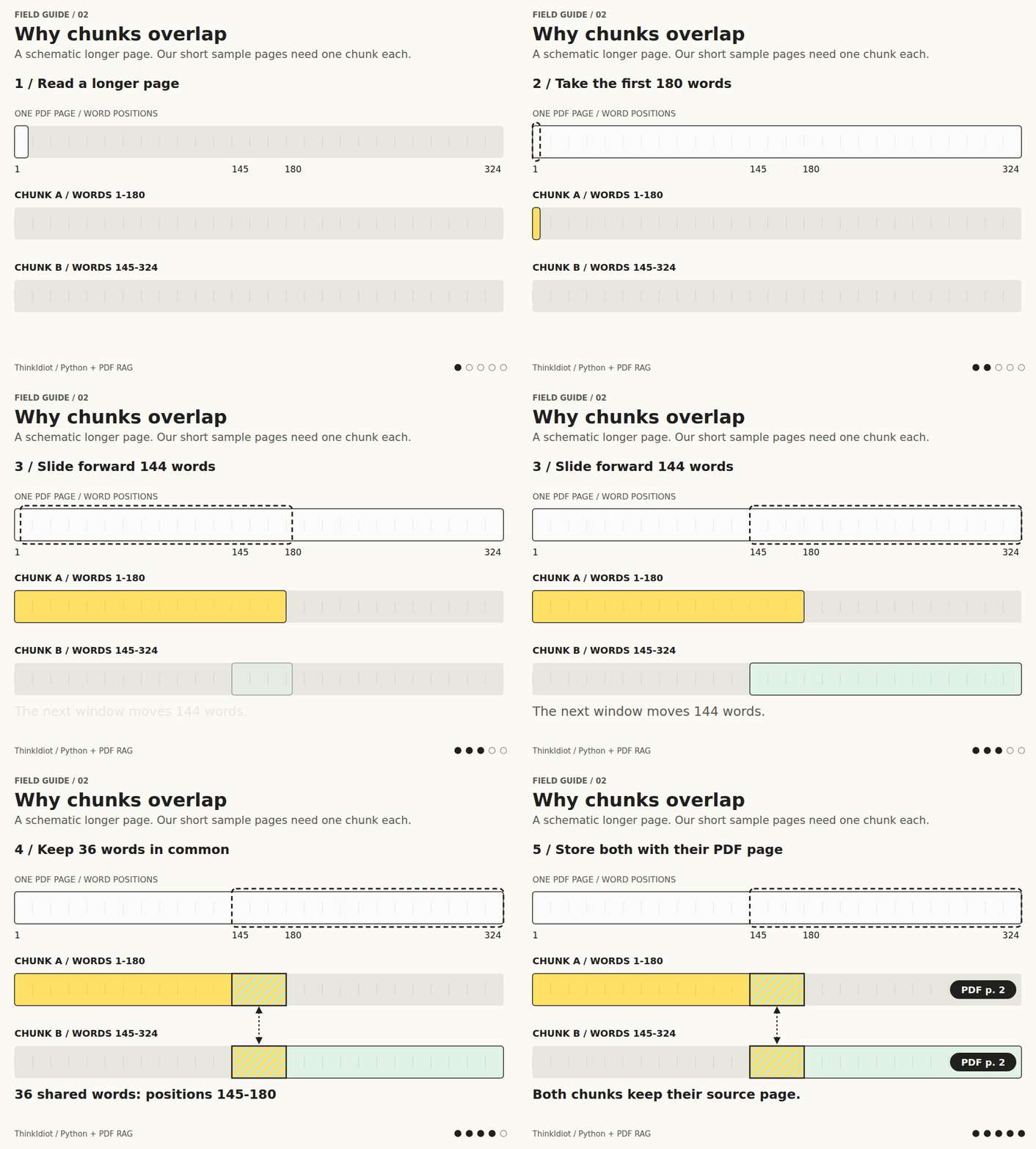
Keeping each chunk within one page makes citations easier to follow, but it has a tradeoff: an explanation that continues onto the next page can get separated. You could let chunks span pages, provided you save both source locations. Also, words aren't model tokens, so 180 words isn't a guarantee that every input fits. We use truncate: false to make oversized embedding requests fail visibly. For longer or multilingual documents, use the model's tokenizer to check its actual input limit.
Step 3: Give each passage an embedding
An embedding is a list of numbers representing a piece of text. Passages with related meanings often have similar embeddings, which lets us search beyond exact word matches. For example, “How much can I spend on a hotel?” might find a passage about a “hotel reimbursement limit,” even though the wording differs. Nomic's model card asks us to label documents and questions with different prefixes. We'll add those before sending text to the model, as shown here.
Document: search_document: The hotel reimbursement limit is EUR 160...
Question: search_query: How much can I spend on a hotel?
The embed function adds the prefix, calls Ollama's embedding endpoint, and converts the returned numbers into a NumPy array. It also checks that we got one non-empty vector per input and rejects zero or non-finite vectors. These checks help catch a bad response close to where it happens, instead of letting it turn into a confusing search result. The last line normalizes each vector to length 1, which simplifies the similarity calculation we'll use shortly.
def embed(texts, query=False):
    prefix = "search_query: " if query else "search_document: "
    data = ollama("embed", {
        "model": EMBED_MODEL,
        "input": [prefix + text for text in texts],
        "truncate": False,
    })
    vectors = np.asarray(data["embeddings"], dtype=np.float32)
    if vectors.ndim != 2 or len(vectors) != len(texts) or vectors.shape[1] == 0:
        raise ValueError("Unexpected embedding shape.")
    lengths = np.linalg.norm(vectors, axis=1, keepdims=True)
    if not np.isfinite(vectors).all() or (lengths <= 0).any():
        raise ValueError("The embedding model returned a non-finite or zero vector.")
    return vectors / lengths
The ollama function in that snippet is an HTTP helper from rag.py. It calls the local server, sets a timeout, and reports HTTP errors; there's no hosted embedding service hidden behind it. Normalizing the vectors doesn't turn them into probabilities. It simply puts them on the same scale: once both vectors have length 1, their dot product equals cosine similarity. That lets NumPy compare a question against all the saved passages with one matrix operation in the search step.
Step 4: Save the index
An index is the saved connection between each passage and its embedding. Ours keeps the text, vector, file path, and page number together in index.json, with a format version and embedding model name. Run the command below to build it from the docs folder. With the supplied handbook and default settings, you should see four passages indexed, one for each short page. The script sends passages to the embedding model in batches of 16 rather than making a separate request for each one.
python rag.py index docs --output index.jsonIndexed 4 passages into index.jsonRun index again after changing a PDF, extraction settings, chunk sizes, or the embedding model's weights. The loader checks the format and model name, but it doesn't watch your files or notice when the weights behind an existing model tag change. Treat the index with the same care as the source documents: it contains their extracted text in plaintext. If you try this with private PDFs, don't accidentally add index.json to a public repository along with your code.
Step 5: Search before asking for an answer
Now we can embed a question and compare it with the saved passage vectors. We'll use cosine similarity, which measures how closely two vectors point in the same direction. In the formula below, is the question vector and is a document passage vector. The denominator divides by their lengths. Since our embed function already makes each vector length 1, that denominator becomes 1 and we're left with the dot product in the numerator.
Here's that calculation in NumPy. The @ operator compares every saved vector with the question vector, giving us one score per passage. np.argsort(-scores) puts the largest scores first, and [:k] keeps the top k. The full retrieve function also checks the vector dimensions, keeps the source information, and gives each returned passage a short ID. Those IDs let the model refer to a passage without having to invent a filename or page number.
query_vector = embed([question], query=True)[0]
vectors = np.asarray(index["vectors"], dtype=np.float32)
scores = vectors @ query_vector
order = np.argsort(-scores, kind="stable")[:k]
Before asking the chat model anything, run search and read the passages it returns. For the hotel question below, the travel page should come first. You'll see the file, page, score, and passage text, so you can judge the result yourself. Don't read a score of 0.7 as “70% likely to be correct.” It's a similarity measurement, not a measure of answer reliability, and adding a cutoff by itself wouldn't tell us whether the document actually answers the question.
python rag.py search index.json "What is the hotel reimbursement limit?"
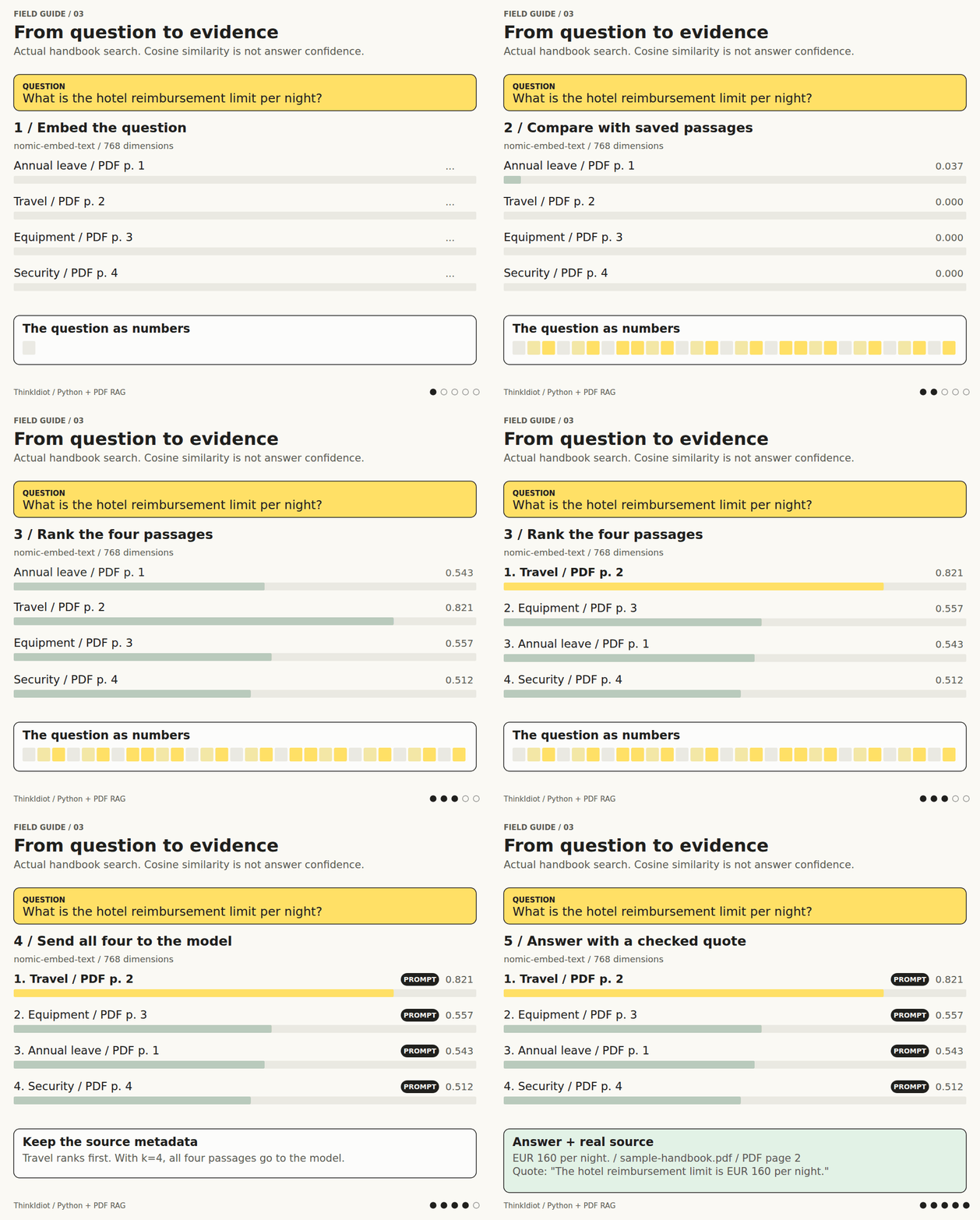
Our code returns the top four passages by default. Since the sample only contains four, all of them go into the prompt; search changes their order rather than excluding anything. That's enough to check that the ranking code works, but it won't show you how well retrieval handles a folder with hundreds of passages. Add more documents and a few questions with known answers before judging that. The demo below illustrates which passage answers each question; it doesn't run the model in your browser.
Try asking about something else.
Choose a topic, then find the page that answers the question.
Which of these pages would you check? Search compares the question with the saved passages to find related text.
What happens in the actual Python search?
The model turns the question into numbers and compares them with saved passage vectors. For the hotel question in a recorded run, travel scored 0.821, equipment 0.557, leave 0.543, and security 0.512. These are similarities, not confidence. The code takes four passages, so all four enter this sample’s prompt. The choices above illustrate relevance; they do not run the model.
Step 6: Let the model read the passages
The chat model now gets the question together with the retrieved text. We ask it to answer from those passages, quote its sources word for word, and return an empty answer if the passages don't help. We also tell it to read PDF content as reference material, not as instructions. Here's the shape of the call in answer_question; the system prompt is shortened in this excerpt. The download contains the full prompt and the schema used to describe the response we want.
response = ollama("chat", {
    "model": CHAT_MODEL,
    "stream": False,
    "think": False,
    "format": ANSWER_SCHEMA,
    "options": {
        "temperature": 0,
        "num_ctx": 8192,
        "num_predict": 600,
    },
    "messages": [
        {"role": "system", "content": "...the grounding rules..."},
        {"role": "user", "content": json.dumps({
            "question": question,
            "passages": context,
        }, ensure_ascii=False)},
    ],
})
We turn streaming off so Python can check the whole response before printing it, and use think: false to disable Qwen3's thinking output for this task. Temperature 0 reduces variation between answers, although it doesn't guarantee the same answer every time or make an answer correct. The context limit is 8,192 tokens and the output limit is 600. We also request JSON rather than prose with footnotes, because separate answer and citation fields are easier for our code to check.
{
  "answer": "The hotel limit is EUR 160 per night unless approved in advance.",
  "citations": [
    {
      "source_id": 1,
      "quote": "The hotel reimbursement limit is EUR 160 per night."
    }
  ]
}
That JSON is an example of the response format, not a promise that every run will use those exact words or source IDs. IDs refer to the passages returned for the current question, so source 1 isn't a permanent name for a particular page. Ollama's structured output support lets us supply the JSON schema through format. This helps with parsing, but an answer can fit the schema perfectly and still be wrong. We need to check the contents next.
Step 7: Check the citations in Python
A request to “cite your sources” leaves too much up to the model. It could invent a file, a page, or a sentence that sounds like it belongs in the document. Instead, we ask for a source ID and quotation, then look up the filename and page ourselves. In validate_answer, the ID must belong to one of the retrieved passages, and the quote must appear in that passage after whitespace normalization. These are the checks in the excerpt below.
by_id = {passage["id"]: passage for passage in passages}

for citation in data["citations"]:
    passage = by_id.get(citation["source_id"])
    quote = normalize(citation["quote"])

    if passage is None:
        raise ValueError("Citation check failed: unknown source.")

    if len(quote) < 12 or quote not in normalize(passage["text"]):
        raise ValueError("Citation check failed: quote does not match.")
The full function also checks the response types and rejects malformed citation objects. A failed citation produces an error instead of an answer presented as verified. If the model returns no answer or no citations, the program prints the message below. The 12-character minimum in the code is just a guard against useless quotations such as “the.” It doesn't measure how good the evidence is, and a longer quote can still be irrelevant to what the model has said.
I couldn't find enough support in the retrieved PDF passages.The quote can be right while the answer is wrong
The example below shows a problem this checker won't catch. The answer gives a hotel limit of EUR 999, but the quotation says EUR 160. A reader can see the contradiction straight away. Our code, however, only asks whether the quoted words exist in the passage, and they do. It therefore accepts this quotation. That's a good reason to read the answer and its evidence together, even when the program reports that its citation checks have passed.
Answer: The hotel limit is EUR 999 per night.
Quote:  The hotel reimbursement limit is EUR 160 per night.
Checking that a quote exists is different from checking that it supports the answer. We handle the first here; a reader or a separate verification step still has to handle the second. The test suite includes this wrong-answer example to make the gap visible. PDFs can also contain instructions intended to steer the model, a problem called prompt injection. The prompt asks the model to ignore those instructions, but that isn't a guarantee. Stick to trusted documents while trying this version.
A real citation. A wrong answer.
Compare the answer with the policy. Does the quoted sentence support the amount?
The hotel reimbursement limit is EUR 160 per night.sample-handbook.pdf · PDF page 2
Check the citation to see what the code accepts. Try both amounts and compare each answer with the PDF.
Try questions you can check yourself
Start with the three questions below. The handbook gives full-time employees 25 days of paid annual leave on PDF page 1, and sets the hotel limit at EUR 160 per night on page 2. It also allows a higher hotel amount with advance written approval, so check whether that exception survives when you ask about it. The revenue question is different: there's no revenue figure in this document. The program should say it couldn't find enough support, without supplying a citation list.
python rag.py ask index.json \
  "How many days of paid annual leave do full-time employees get?"
python rag.py ask index.json \
"What is the hotel reimbursement limit per night?"python rag.py ask index.json \
"What was Northstar Studio's revenue in 2025?"A plausible revenue figure would still be a wrong answer, however confidently it's written. Open the sample PDF and compare the returned quotations with the text on each cited page. To keep asking questions in one terminal session, use chat below and type /quit when you're done. It prints references and quotes beneath each answer; this terminal version doesn't open a PDF viewer or make clickable page links. Remember to write each question in full, since it doesn't keep conversation history.
python rag.py chat index.jsonTest the code and the models separately
You can run the Python tests without starting Ollama or making any network requests. They check that page numbers survive extraction, that known vectors rank in the right order, and that invented source IDs or quotations are rejected. They also cover the no-citation fallback and the example where a genuine quote accompanies a wrong answer. That last test documents a limitation of the checker, not a contradiction it detects. Run the tests from the project folder with this command.
python -m unittest discover -s tests -vTo test the local models as well, run evaluate.py. It builds a fresh temporary index and asks about annual leave, hotel costs, and equipment allowance, then asks the missing revenue question. For the questions the PDF can answer, it checks the top-ranked page, an expected fact in the answer, and a matching page citation. For the revenue question, it checks that the model declines to answer. This gives you a quick way to check the complete application after changing a model or setting.
python evaluate.pyAll eight Python tests and all four live sample checks passed in our run on Linux ARM64, using Python 3.12.13 and Ollama 0.32.13. The live checks ran on CPU with qwen3:4b and nomic-embed-text; the recorded output is in the download. Your answer wording may differ. Four sample questions show the pipeline works, not that it will handle a dense contract well.
For your own PDFs, write down a few questions and expected answers before changing models or prompts. Include a rephrased question, a rule with an exception, a question needing two sections, and something the documents don't answer. Record the source pages as well as the facts you expect to see. The table below is a starting point. Check retrieval first when a test fails: if the right text never reaches the model, a better-written answer prompt won't supply the missing evidence.
| Question | Expected source pages | Expected fact | Should abstain? |
|---|---|---|---|
| A direct question | Known page | Exact number or phrase | No |
| The same question rephrased | Same page | Same fact | No |
| A question with an exception | Rule and exception | Both must survive | No |
| A question needing two sections | Both source locations | Combined answer | No |
| A question absent from the documents | None | No invented answer | Yes |
To turn a table like this into scored runs with Hit@k, reciprocal rank, and separate citation checks, see how to evaluate a RAG chatbot.
When something goes wrong
The table below should help you decide where to look before changing the prompt. Connection and missing-model errors usually need an Ollama setup fix. Missing or scrambled text needs a look at PDF extraction. If the wrong page comes first, inspect the chunks and search results. If the right passage arrives but the answer is wrong, look at generation and compare the claim with the quote. Keeping these checks separate makes debugging less of a guessing exercise.
| Symptom | Likely cause | What to inspect |
|---|---|---|
| Connection refused | Ollama is not running, or the URL is wrong | Open Ollama and check OLLAMA_URL. |
| Model not found | A model has not been downloaded | Run the two ollama pull commands and inspect ollama list. |
| No readable PDF text | Wrong folder, image-only pages, or extraction failure | Print page.extract_text() and add OCR where needed. |
| Wrong source page ranks first | Extraction, chunking, or retrieval is unsuitable | Run search and inspect the actual passages. |
| Quote validation fails | The model paraphrased its quote or invented a source | Inspect retrieval and the response; do not silently skip validation. |
| New document contents are missing | The index is stale | Rebuild the index after document changes. |
| An apparent follow-up gets a strange answer | There is no conversation memory in this version | Ask a complete standalone question. |
| Correct quotes, wrong conclusion | Generation or claim-verification failure | Compare each factual claim with its quoted evidence. |
If you're using a shared GPU machine, you can run the sample checks on CPU with the settings below. These environment variables are read by the HTTP helper and passed to Ollama; they're optional. CPU runs can be slower, and the time will depend on your hardware and models. This is also a reasonable way to test the application without taking GPU resources away from another job. It doesn't change the PDF extraction, retrieval calculation, or citation checks.
export RAG_NUM_GPU=0
export RAG_NUM_THREADS=4
python evaluate.py
What to change when you add your own PDFs
Start with the documents rather than immediately choosing a bigger model. Fixed word windows can break up tables, headings, and explanations, so try chunks based on paragraphs or document sections if your evaluation questions expose that problem. Keep the headings and source locations with the text, particularly when a number needs a label to make sense. Change one thing at a time and rerun the same questions.
If search misses exact product codes or unusual names, compare embeddings with keyword search. A combination of BM25 and embeddings is another option to test. You can also retrieve more candidates and use a reranking model to choose among them; the Sentence Transformers guide explains that approach. For a larger collection, replace the JSON file with a search index suited to the amount of data. Keeping retrieval separate from answer generation makes that swap easier.
A web interface would need decisions about conversation history and who can access which documents. Enforce document permissions before retrieval; telling the model to respect them isn't access control. If people will make important decisions from the answers, you'll also need a way to check whether the evidence supports each claim. This tutorial's quote checker is a useful first check, but the EUR 999 example shows why it can't be the last one.
Try it with a document you know
A useful next step is to add a PDF you know well and write five questions you can answer without the chatbot. Run search first and read the returned passages, then use ask and compare its answer with those passages. You'll learn more from a few mistakes you can explain than from a long chat full of plausible answers. Keep the questions as a small test set so you can tell whether later changes improve the results.
The project download has everything needed to run this example, including the sample PDF and tests. Once it works locally, spend some time with the saved index and the printed citations before adding features. Being able to trace an answer back through the question, passage, and PDF page will help with whatever you build next.
Where to go from here:
- Evaluate your RAG chatbot with labelled questions, Hit@k, and citation checks.
- Build an AI agent with tool calling when the answer needs a calculation or a live lookup instead of a passage.
- RAG vs fine-tuning helps you decide whether retrieval is the right fix at all.
- Fine-tune an LLM with LoRA and QLoRA shows the training-side alternative.
- For the model itself, see how transformers and attention work or build a small GPT in PyTorch.